Monday morning, 8:42. You open your inbox, coffee in hand. And there it is again.
Hi, I ordered 6 days ago and I have had NO news at all.
Is this normal? I'm starting to wonder if I'll ever get it…
You sigh. The parcel left on Thursday. You know it. She doesn't.
So you open the order. You look for the number. You go to the carrier's website. You write a polite reply. More time gone. And tomorrow, it starts again with another customer.
Store owners even have a name for it: WISMO, for “Where Is My Order?”. And the worst part is not the time. It's what the customer thinks while they wait.
A customer with no news doesn't think “it's on its way”. They think “I've been scammed”.
And a worried customer rarely ends well. A chargeback with their bank. A one-star review. Or simply a customer who never comes back.
I sell on WooCommerce myself. I've received that email more times than I'd like. The good news: good order tracking fixes almost all of it.
Here are the 3 methods, from simplest to most effective. The first two are free. The third one changes everything. For each one: how to do it, what the customer sees, and our honest verdict.
Method 1: The customer note (free, but manual)
This is the method everyone tries first. Nothing to install.
The idea: you write the tracking number in a note, and WooCommerce emails it to the customer.
- Open the orderIn WooCommerce > Orders, click the order you shipped.
- Write the noteIn the “Order notes” box, type something like: “Your parcel shipped with UPS, tracking number: …”.
- Send it to the customerSet the visibility to “Public note to customer”, then click “Send note to customer”. The email goes out right away.
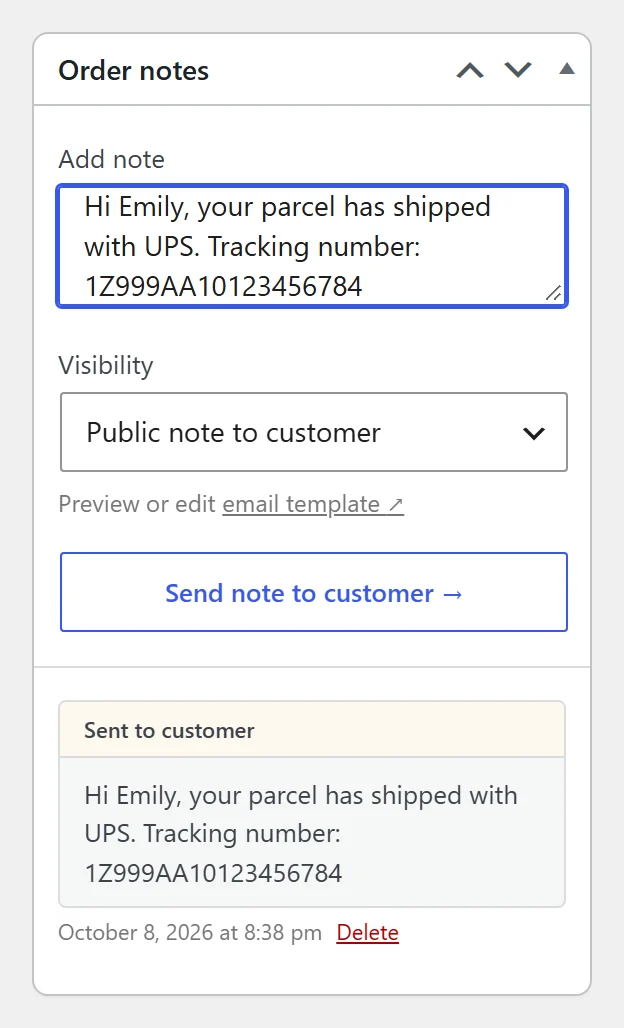
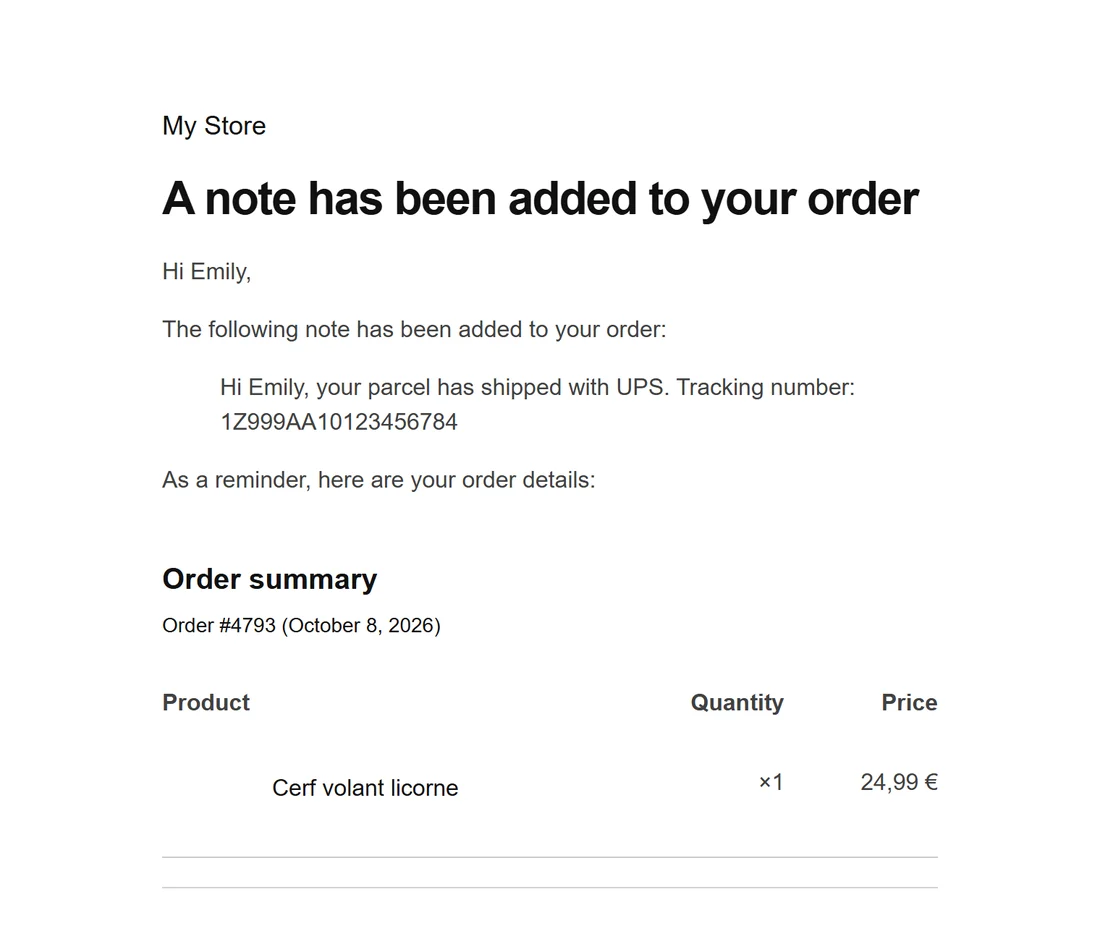
It works. But look at what the customer receives: a plain-text number, buried in a generic email.
To find their parcel, they have to copy that number, find the carrier's website and paste it there. Many don't bother. They email you.
And on your side? No dedicated field. No way to see at a glance which orders have a number. And nobody warns you when a parcel gets stuck or goes back to sender.
What works
- Free, nothing to install
- The customer at least has a number
What hurts
- The customer has to look it up alone
- One copy-paste per order, plus typos
- No warning when a parcel gets stuck
Bottom line: fine for a few orders a week. Beyond that, say goodbye to your evenings.
Method 2: WooCommerce's built-in tracking form (free, but misleading)
Few store owners know this: WooCommerce already has a tracking form. It hides behind a shortcode.
- Create a “Track your order” page.
- Paste
[woocommerce_order_tracking]into it. - The customer enters their order ID and billing email. No account needed.
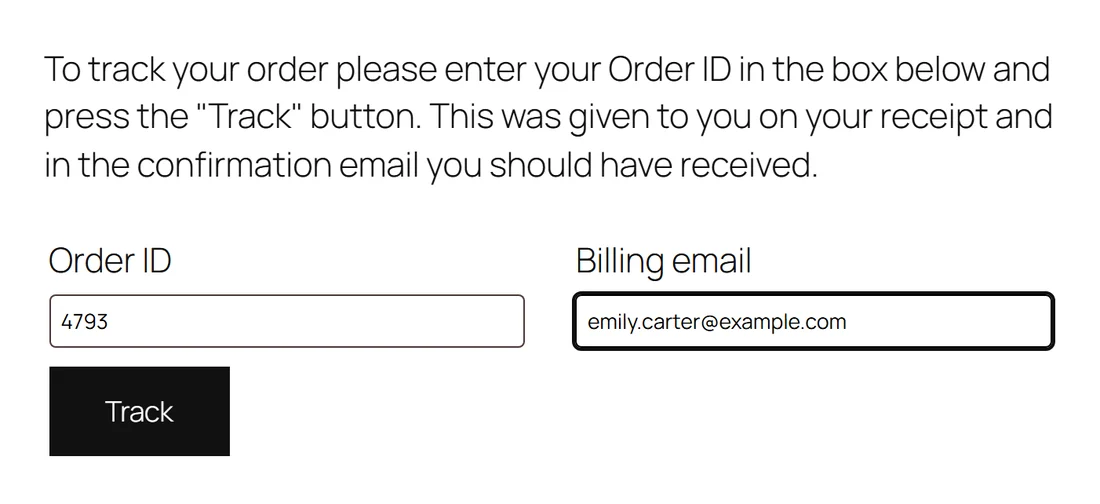
They then see the order status, the items ordered and any notes you sent them.
But there's a catch.
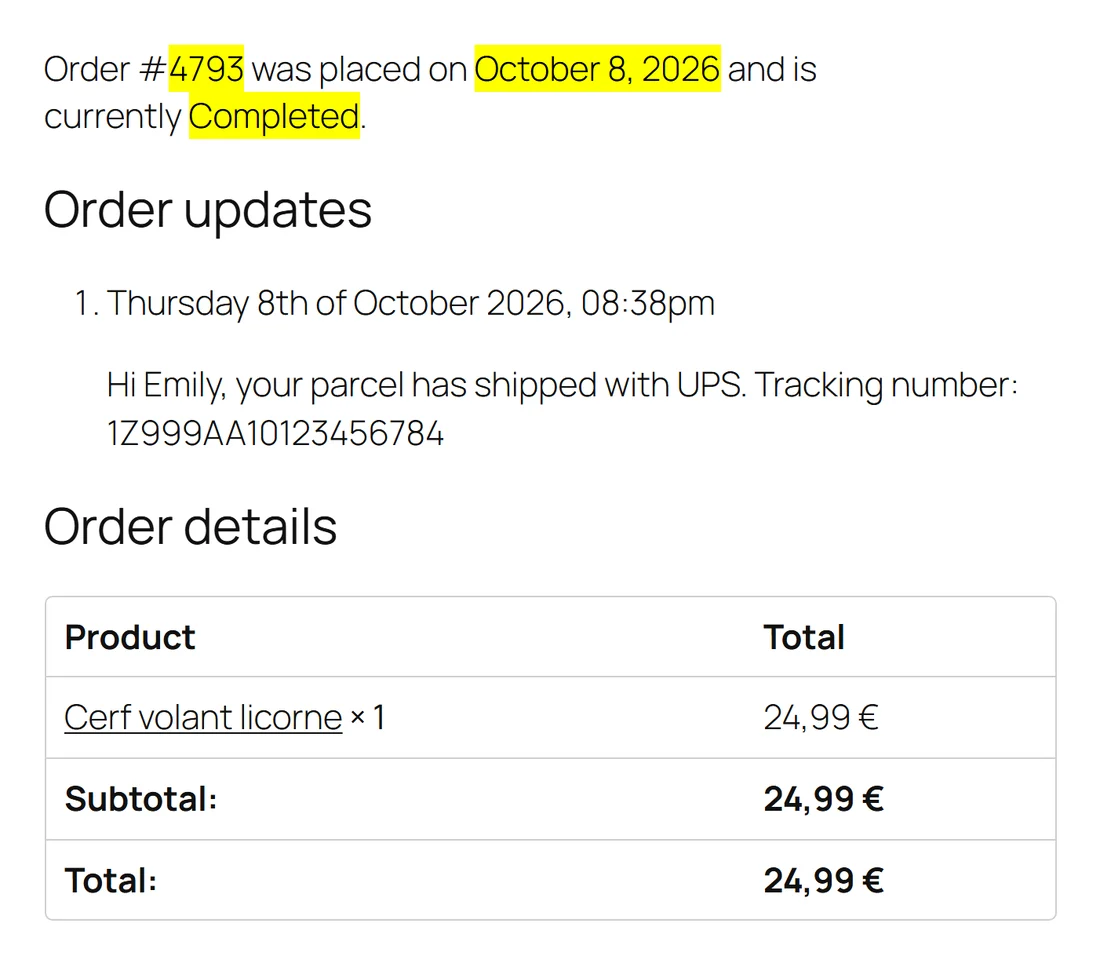
This form shows the status of the order, not the journey of the parcel. WooCommerce has no idea where the package is. It only knows you marked it “Completed”.
So six days after shipping, the customer still reads “Completed”. Whether the parcel is asleep at a sorting center or already in their mailbox.
To them, “Completed” means nothing. So they email you anyway.
What works
- Free, set up in minutes
- Customers look it up alone, no account
What hurts
- No journey, no delivery date
- A basic form that doesn't look like your brand
- “Completed” worries more than it reassures
Bottom line: it reassures about the order, not the parcel. And the parcel is what worries your customers.
Method 3: A complete tracking plugin (paid)
Methods 1 and 2 share the same flaw. They talk about the order. Never about the parcel.
A tracking plugin fixes that from end to end. The number, the email, the tracking page, the wait before shipping: it all fits together.
Here's how it works with Plume Tracking, step by step, from your click to the delivery.
A. You add the number in one click
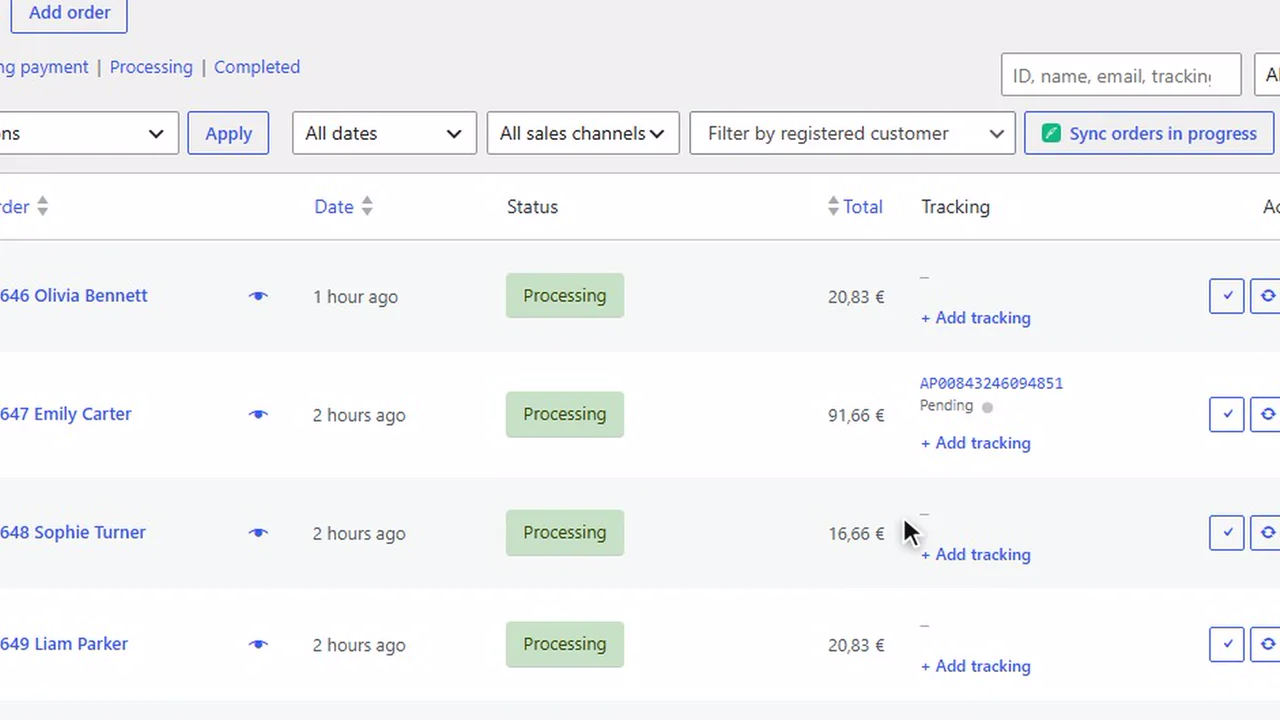
In the orders list, click “+”. Paste the number. That's it.
The carrier is detected automatically, among more than 1,600. Nothing to pick from a list.
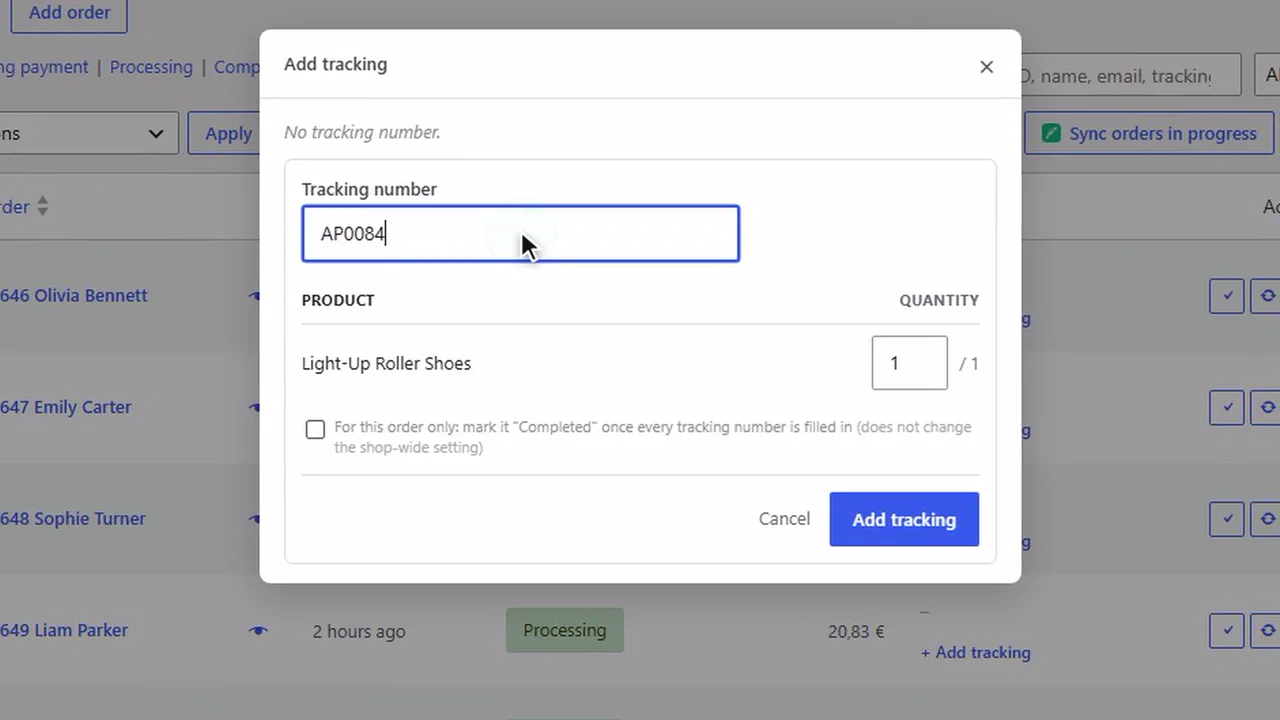
Then each parcel's status shows up in the list. It refreshes several times an hour, until delivery.
B. The customer gets the email with a “Track” button
After paying, the customer waits for one piece of news: “your parcel is on its way”. In WooCommerce, that message already exists. It's the “Completed order” email.
The plugin upgrades it. No extra email: the right email, at the right time, with everything in it.
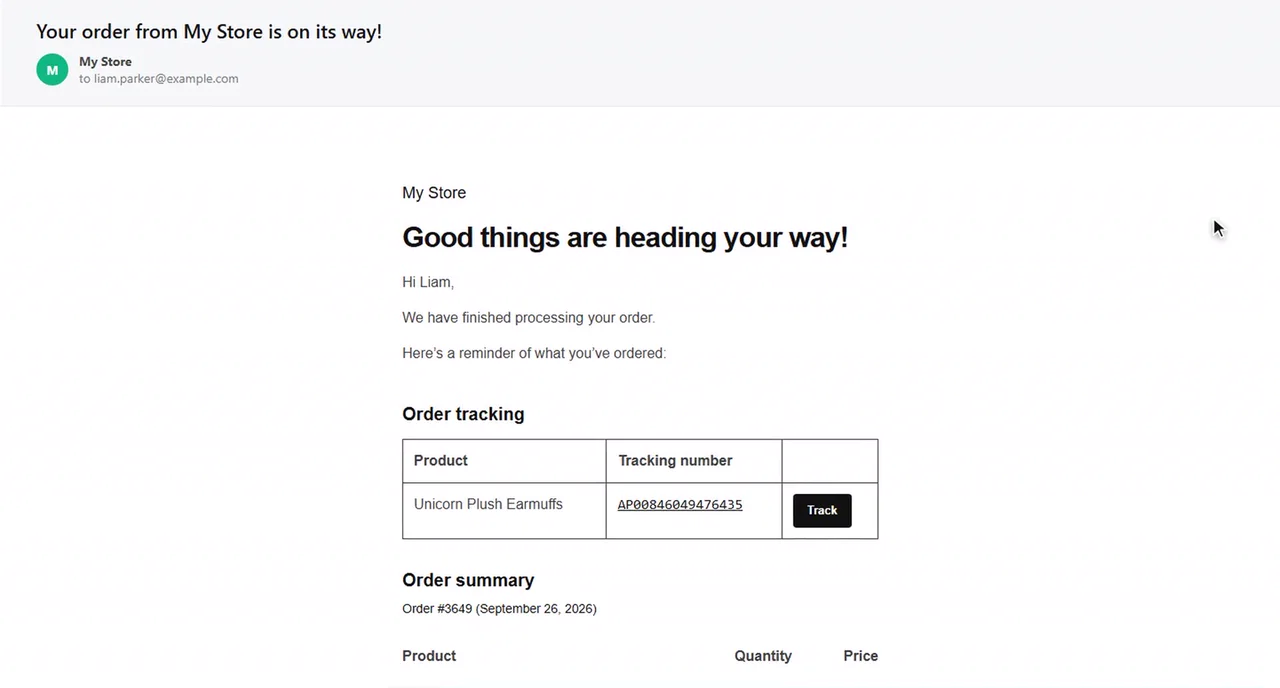
One detail matters a lot: the “Track” button leads to your tracking page, not the carrier's website.
And if the order ships in several packages? Each product gets its own row and number. The customer knows which item travels with which number.
C. They track the parcel on your store
Why not the carrier's website? Because over there, the customer:
- leaves your store, your logo and your products;
- lands on a carrier brand they may not know;
- reads statuses in logistics jargon, sometimes in another language.
They don't understand. They worry. They email you.
On your tracking page, they find their parcel without an account. With their order number and email, or straight from their tracking number.
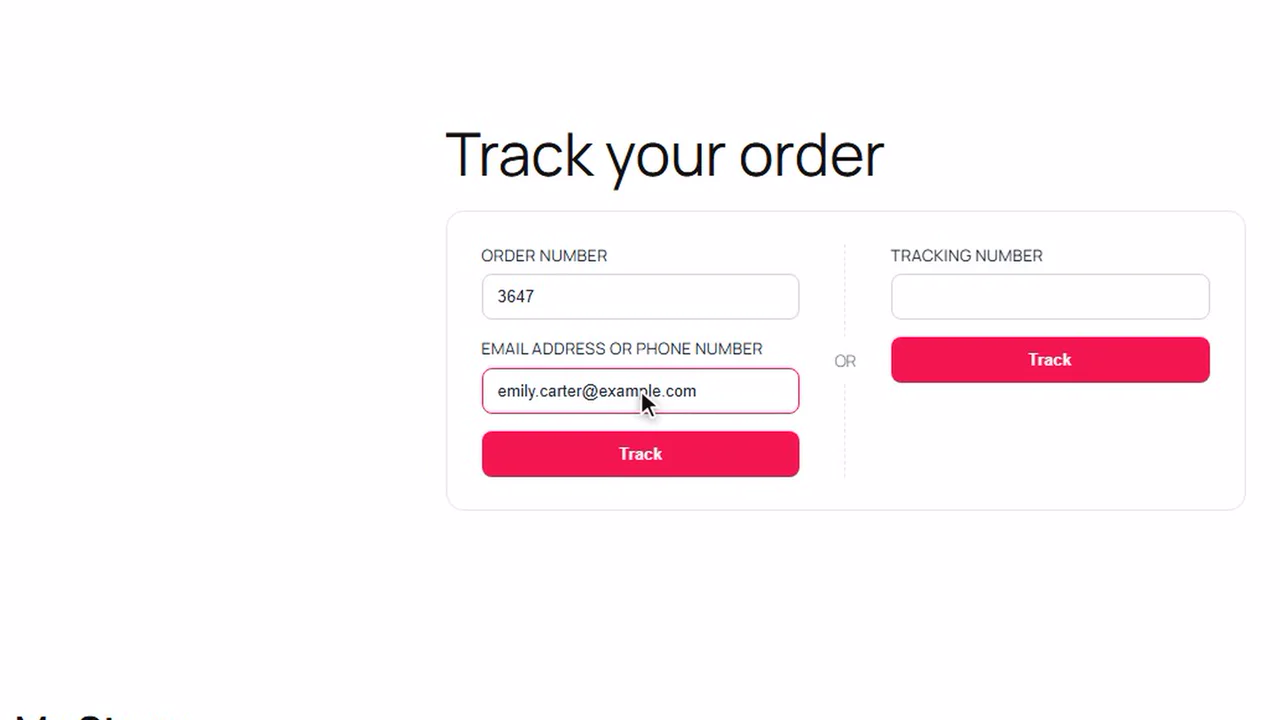
And this time, they don't just read “Completed”. They see their parcel.
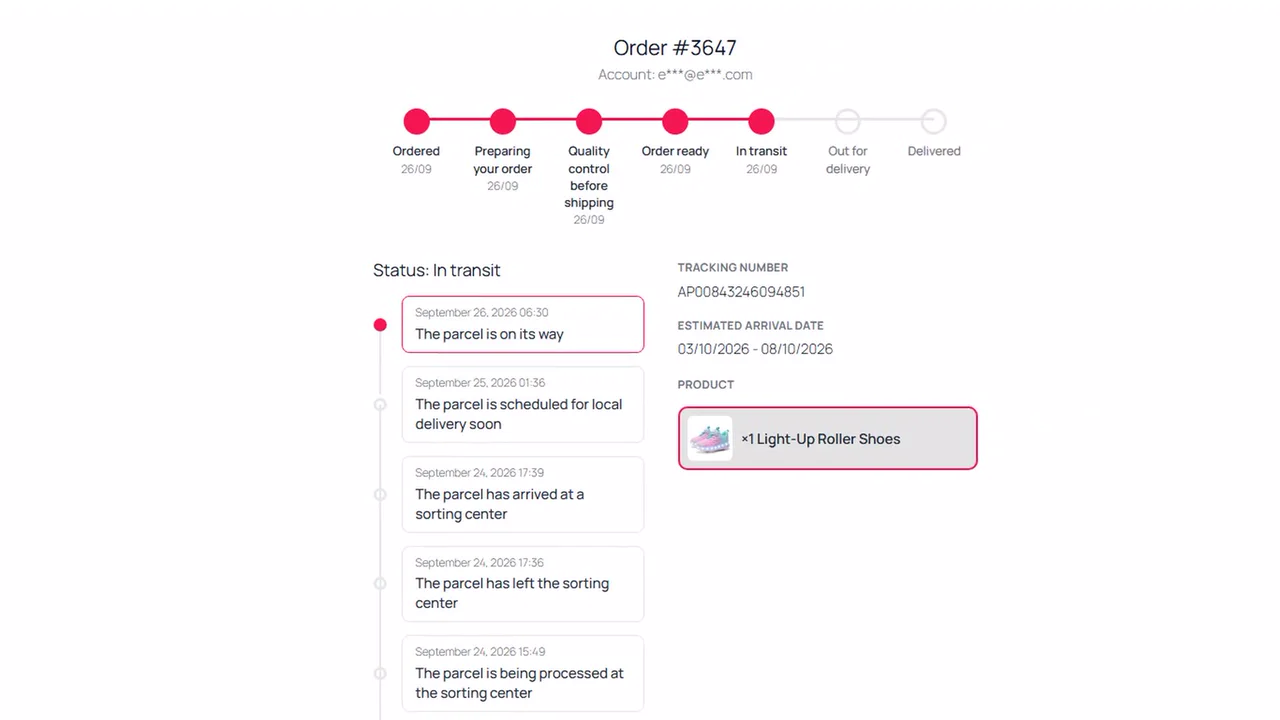
Setting it up is quick:
- Create a “Track your order” pageIt's the one your customers will look for.
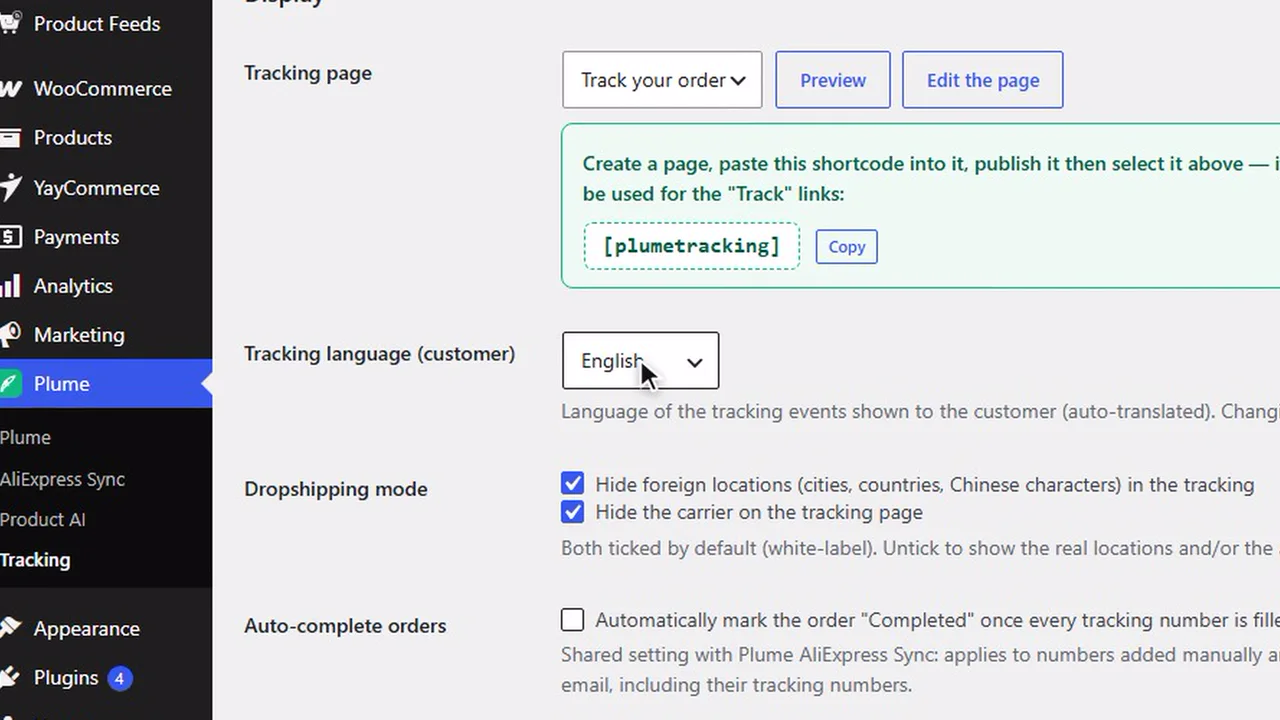
- Paste the shortcode
[plumetracking], then select that page in the settings. - Adjust the lookColors, corner radius, text size, with a live preview.
- Make it easy to findLink it from the menu, the footer and the order confirmation page.
D. Before shipping: no more empty page
Here's what most store owners miss.
“Where is my order?” emails aren't born during shipping. They're born before it.
Between checkout and the carrier's first scan, several days can pass. Processing, packing, supplier lead time.
During that time, the number shows “not found” and tracking is empty. To the customer, nothing is moving. And when nothing moves, they panic.
The fix: show them what's really happening. Order received. Being prepared. Quality control. Their order is moving, and they can see it.
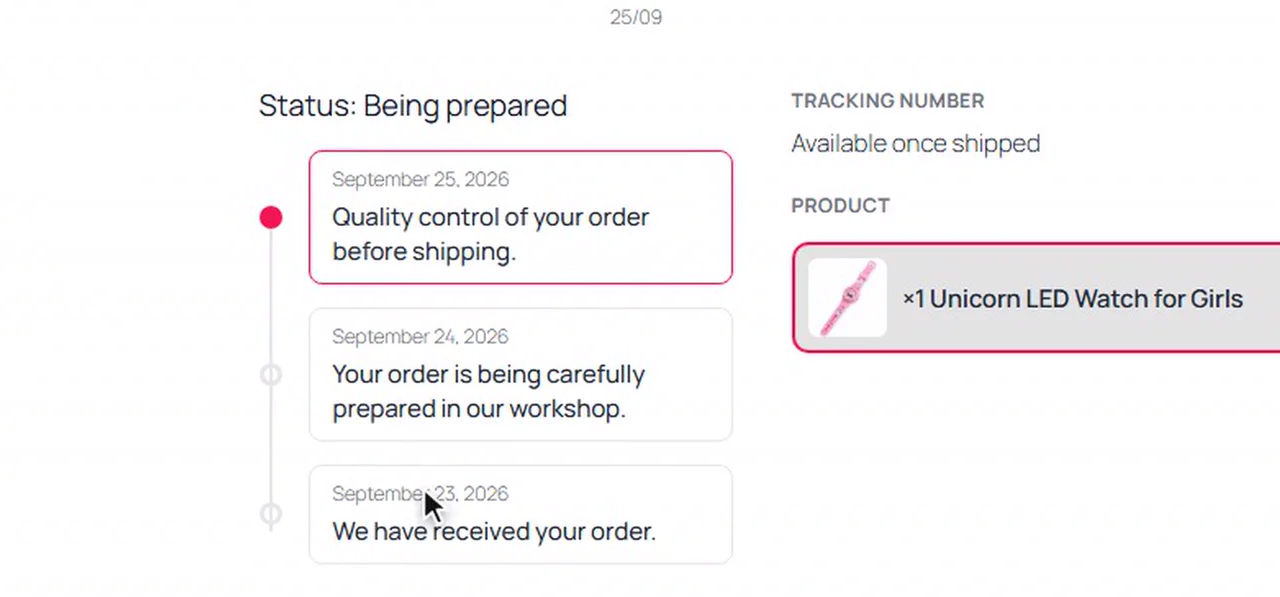
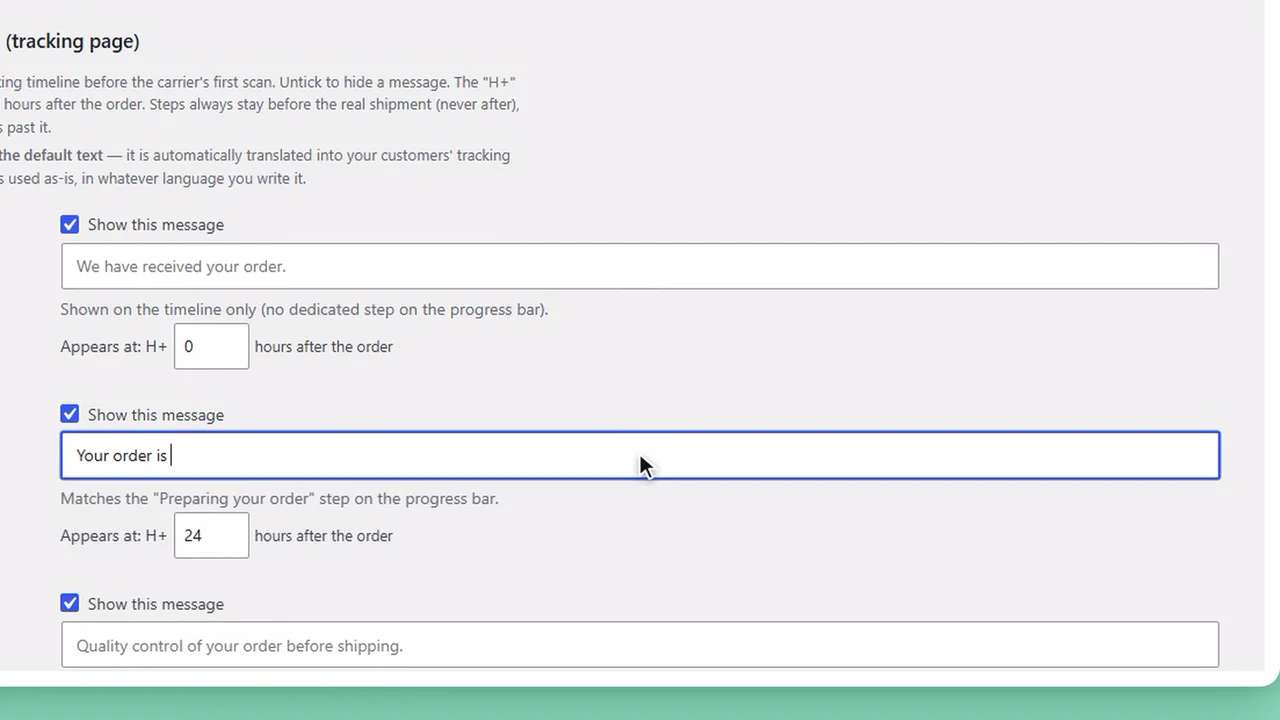
You choose the wording of each step and when it appears. At the first scan, the page switches on its own to real tracking, with an estimated delivery date.
E. Dropshipping: nothing gives away the origin, and it's in their language
Do you dropship? Then raw carrier tracking tells a story you didn't choose:
- a carrier name your customer has never heard of;
- origin cities on the other side of the world, the classic “shipped from China”;
- customs steps that drag on;
- statuses in a foreign language, sometimes in Chinese characters.
Nothing false. But nothing that helps them wait. Then come the doubts and the cancellation requests.
Dropshipping mode hides carrier names and origin cities. The customer sees the progress of the order, on a page with your name on it. Period.
And your customers abroad? Parcel steps are translated automatically into their language, among 9 languages. Your Spanish customer reads “En tránsito”, not “In transit”.
Selling AliExpress products? Plume AliExpress Sync lets you sync AliExpress tracking numbers in one click, or in bulk. They are tracked automatically. And the order can even switch to “Completed” on its own, email sent.
What works
- The number in one click, carrier detected automatically
- An email with a “Track” button
- Parcel tracked on your store, no account needed
- No more empty page before shipping
- No carrier, no origin city, in the customer's language
What hurts
- A few minutes of setup at the start
Bottom line: with methods 1 and 2, the customer still has to ask you. With method 3, they have the answer before the question even crosses their mind.
That is exactly what our WooCommerce order tracking plugin does.
Plume's take: stay free or switch to a plugin?
Let's be honest. The free methods aren't useless. They just run out of steam fast.
| Method | Your time | What the customer sees | Cost |
|---|---|---|---|
| 1. Customer note | One message to write per order | A plain-text number, no button | Free |
| 2. WooCommerce form | One page to create | “Completed”, not the parcel | Free |
| 3. Complete tracking plugin | One paste per order | Their parcel, tracked on your store from day one | From €29/month, every Plume extension included |
Our recommendation, based on your volume:
- A few orders a month: combine methods 1 and 2. The note even shows up in the form's result. Keep your money.
- Shipping every week: switch to method 3. That's when support emails really drop.
- Dropshipping or selling abroad: method 3 from your very first order, with dropshipping mode on. A customer who spots an unexpected origin city starts to doubt.
On price, Plume Tracking is included in every Plume plan, from €29/month. And that price doesn't just cover tracking: it's one subscription for every Plume extension, from AliExpress sync to invoices and live chat. Each tracked number uses 3 credits, status updates included. The first plan comes with 1,000 credits a month: enough to track over 300 parcels if tracking is all you use.
The best support email is the one your customer never needs to write.
Fewer emails. Reassured customers. And reassured customers buy again.
Still getting questions before the purchase? Here is how to add a live chat to WordPress without slowing your store down.
Two Plume plugins pair nicely with it:
 Plume AliExpress SyncPull your AliExpress tracking numbers in one click, then track them automatically.
 Plume ChatA live chat in your colors, for the rare questions that remain.
Frequently asked questions
Does WooCommerce have built-in order tracking?
Partly. WooCommerce manages order statuses and offers a tracking form through the [woocommerce_order_tracking] shortcode. But that form shows the order status, not the parcel's journey: for that, you need a tracking plugin.
How do I add a tracking number to a WooCommerce order?
Without a plugin, add a “Note to customer” on the order with the carrier and the number, and the customer receives it by email. With a tracking plugin, you paste the number into a dedicated field and the carrier is detected automatically.
Why didn't my customer receive the tracking number?
Usually because the order was not switched to “Completed” after the number was added. Saving a number sends nothing: switching to Completed is what triggers the email. If the order was already completed before, the email went out without the number.
Can customers track a WooCommerce order without an account?
Yes. The built-in form asks for the order ID and billing email, with no login. A fuller tracking page also lets customers search directly by tracking number.
Is there a “Shipped” order status in WooCommerce?
Not by default. WooCommerce goes from Processing to Completed, and adding “Shipped” means creating a custom status and its email. For most stores, Completed plus real parcel tracking until delivery is enough.
How do I hide “shipped from China” on a tracking page?
Send customers to a tracking page on your own store, not to the carrier's website. Then use a plugin with a dropshipping mode: it hides carrier names and origin cities.
What should customers see before the parcel is scanned?
Honest preparation steps such as “order received”, “being prepared” and “quality control”, timed to match your real processing time. At the first scan, the page should switch to real tracking with an estimated delivery date.
How much does Plume Tracking cost?
Plume Tracking is included in every Plume plan, from €29/month for every Plume extension, with a 7-day free trial. Each tracked number uses 3 credits, status updates included. You can cancel anytime.

I build lightweight WooCommerce plugins out of what I run into with my own online stores. Plume is the essentials of a store, without the bloat.