
In September 2026, only 39% of the WooCommerce stores measured by HTTP Archive passed Google's Core Web Vitals on mobile. Only 12% had a server response time rated “good”.
So if your store feels slow, you are far from alone. But “slow” is not a diagnosis. It's a symptom.
Most guides give you 18 tips and a cache plugin to buy. This one gives you 9 tests. You run them, you read the numbers, and you fix what is actually broken.
To keep it honest, we ran every test on our own WooCommerce test store: WooCommerce 10.9, the default Twenty Twenty-Five theme, 94 products, no cache. First as it was, with 7 plugins. Then with the plugins you find on most stores: a wishlist, product reviews, AliExpress imports, PDF invoices, order tracking, a live chat. 15 plugins in total. You'll see the real results at each step. Spoiler: what slowed it down was not only what we expected.
Source of the opening figures: HTTP Archive Core Web Vitals Technology Report, Chrome UX Report data for September 2026 (our calculation: origins passing over origins measured).
The 6 words you'll see, in plain English
- Server: the computer, at your host, that builds your pages and sends them to your visitors.
- Server response time (TTFB): how long your visitor stares at a blank screen before your page starts arriving.
- Cache: a ready-made copy of a page, kept aside so it can be served instantly instead of being rebuilt.
- PHP: the language WordPress and WooCommerce are written in. Your host chooses its version, and newer is faster.
- Plugin: an add-on you install. Each one adds code that may run on every page, even when you don't see it.
- Admin: your back office, where you manage products and orders. Your customers never see it.
Step 1: Is your site really slow, and for whom?
Symptom. It “feels” slow. A customer complained. Or a speed test showed a red score and you panicked.
Test it.
- Open PageSpeed InsightsAt pagespeed.web.dev, paste the URL of your most visited product page, not just your home page.
- Read the top block first“Discover what your real users are experiencing” shows data from real Chrome visitors over the last 28 days.
- Then read the lab testThe score and the five metrics below come from one simulated visit on a mid-range phone.
What it means. Google's thresholds, from web.dev, apply to 3 visits out of 4:
| Metric | What it measures | Good | Poor |
|---|---|---|---|
| LCP | When the main content (often the product photo) appears | 2.5 s or less | over 4 s |
| INP | How fast the page reacts to a tap or a click | 200 ms or less | over 500 ms |
| CLS | How much the page jumps while it loads | 0.1 or less | over 0.25 |
“No Data” in the top block is normal for a small store: there isn't enough Chrome traffic yet. You then work with the lab test, and with your own measurements in the next steps.
Speed also matters for search, with a nuance. Google says Core Web Vitals “are used by our ranking systems”, but it “always seeks to show the most relevant content, even if the page experience is sub-par” (Google Search Central).
On our test store, with the usual 15 plugins. Score 67 on mobile, no real-user data. The main photo took 3.8 seconds to show up, well above the 2.5-second target. And a surprise: a CLS of 0.373, deep in the red. The page wasn't only slow, it jumped.
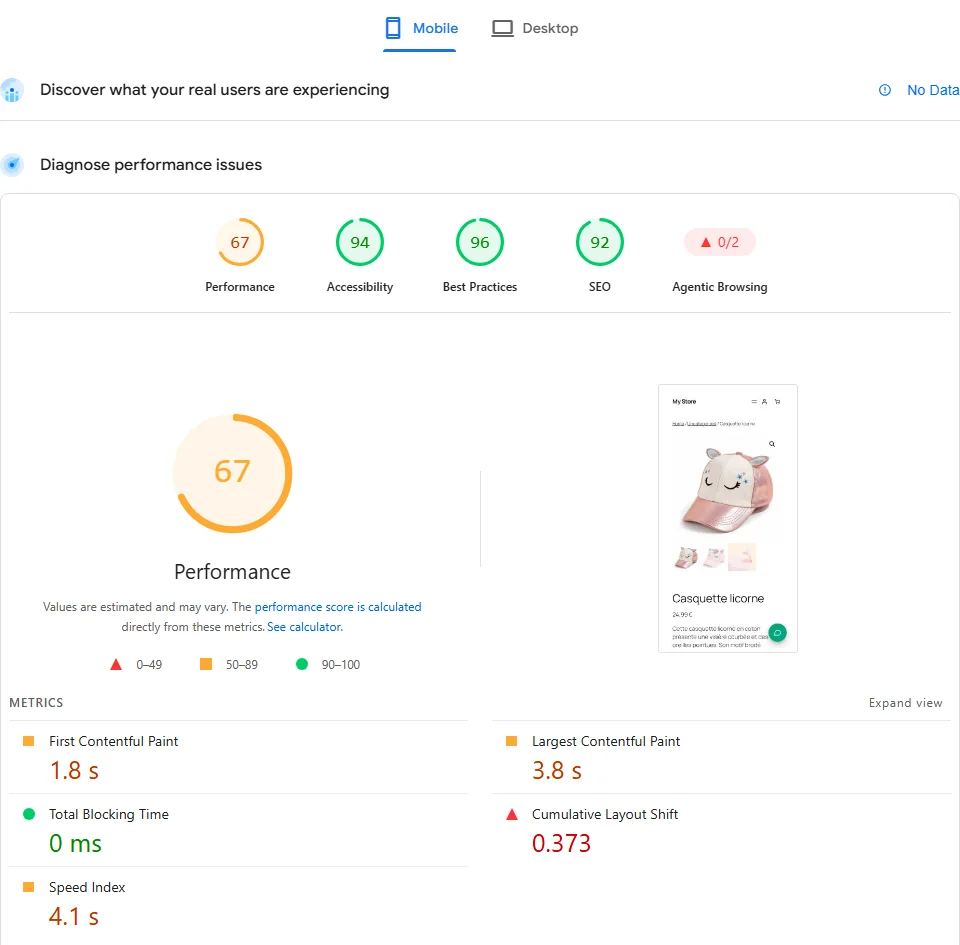
The fix. Nothing yet. Write down your score, LCP, INP or TBT, and CLS in a “before” table. Run the test 3 times and keep the middle value.
Step 2: Does your server take too long to answer?
Symptom. A blank screen before anything appears. Every page is slow, even the simplest one.
Test it.
- Open Chrome's developer toolsRight-click, Inspect, then the Network tab. Tick “Disable cache”.
- Reload the pageClick the very first line, the page itself, then the Timing tab.
- Read “Waiting for server response”That's your Time to First Byte (TTFB). Do it on 4 pages: home, a product page, the cart, and any page while logged in.
Think of a restaurant. Without a cache, the kitchen cooks every dish from scratch for each customer, even the same dish ordered a hundred times a day. With a cache, the dish is already on the counter. Your server is the kitchen, and a WooCommerce page is a complicated dish.
What it means. According to web.dev, “most sites should strive to have a TTFB of 0.8 seconds or less”. It isn't a Core Web Vital, but everything else waits for it. WordPress's own Site Health check flags a page response over 600 ms.
- Fast home page, slow cart: a page cache hides a slow server. Your cart and checkout, which can't be cached, pay the full price.
- Everything slow: no page cache at all, or a server and PHP setup to review (step 3).
On our test store. With its 7 plugins, every page took about half a second to be built: 0.45 s for the home page, 0.51 s for a product page, 0.47 s for the cart. With the usual 15 plugins, 0.6 to 0.7 s. On the same server, a plain image file came back in 7 milliseconds. So nearly all the wait was the server building the page with PHP, for every visitor.
Then we tried the classic fix for one evening: a page cache, with LiteSpeed Cache on its default settings, since our test server runs LiteSpeed.
| Page | Without page cache | With page cache |
|---|---|---|
| Home | 0.42 to 0.50 s | 0.009 s |
| Product page | 0.50 to 0.58 s | 0.007 s |
| Cart | 0.46 to 0.47 s | 0.50 s (never cached) |
Server response time measured from the server itself, 4 requests per page, October 21, 2026. We removed the cache afterwards to keep the store in its original state.
The fix.
- Add a page cache. Free options: LiteSpeed Cache if your host runs LiteSpeed (its cache needs a LiteSpeed server or its CDN), or WP Super Cache anywhere. Paid: WP Rocket, from €49.95 a year for one site according to its pricing page in October 2026. Whatever you pick, the cart, checkout and My Account pages must stay uncached, as WooCommerce recommends.
- Speed up what can't be cached: PHP and its caches, in step 3.
Step 3: Read your Site Health report
Symptom. You don't know where to start. Or the site has “always” been slow.
Test it. In your admin, go to Tools, then Site Health. Open the Status tab and look at every line tagged “Performance”.
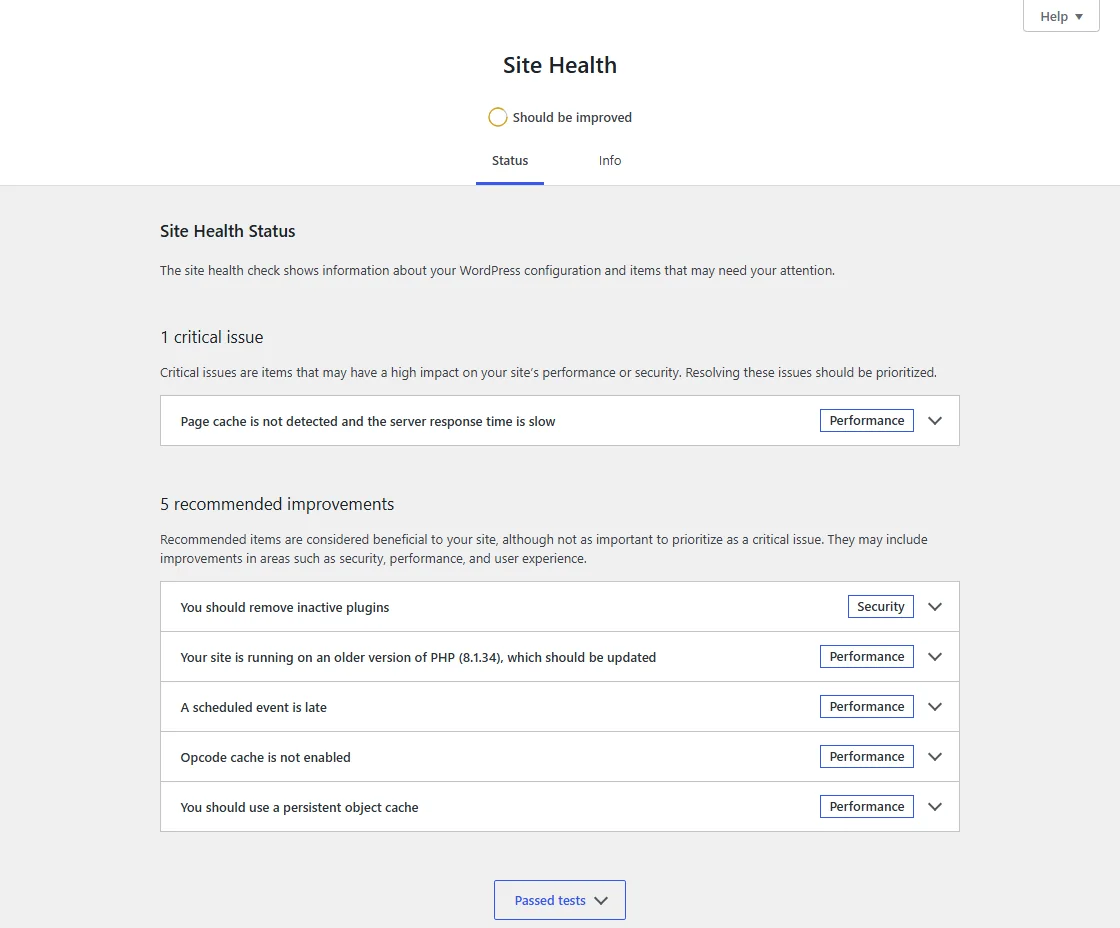
What it means.
| You see | It means | Do this |
|---|---|---|
| Page cache not detected, server response slow | Every visitor waits for PHP (step 2) | Add a page cache |
| Older version of PHP | WordPress and WooCommerce both recommend PHP 8.3 or later | Switch PHP version in your hosting panel, on a staging copy first |
| Opcode cache is not enabled | PHP re-reads all of WordPress's code from scratch on every page, like a cook re-reading the recipe for each dish | Ask your host to enable “OPcache”: one email, no plugin |
| Use a persistent object cache | WordPress looks up the same information again and again, instead of keeping it at hand | Ask your host if they offer Redis, then install Redis Object Cache (free) |
| Autoloaded options could affect performance | Over 800 KB of settings load on every page, often left by removed plugins | Clean them with WP-Optimize or a developer |
On our test store. PHP 8.1, which no longer gets security fixes according to php.net. No page cache. No persistent object cache. And the big one: the opcode cache wasn't just disabled, its extension wasn't even loaded. That's a hosting setting we can't change ourselves. Autoloaded options, on the other hand, were healthy: 89 KB.
The fix. Start with what Site Health lists as critical. For PHP and OPcache, you don't touch anything yourself: copy the lines from Site Health into a message to your host. That one email often does more than any plugin.
Step 4: Find the plugins that load everywhere (Query Monitor)
This step is the most technical one. If it feels like too much, read the results below, then hand the test to a developer: show them this section, they'll know what to do.
Symptom. Your server is slow even on pages that can't be cached. Or the site got slower after you installed something.
Test it.
- Install Query MonitorIt's free, and only admins see its panel.
- Open a product page while logged inClick the new item in the admin bar. Read the page generation time and the number of database queries.
- Open “Queries by Component”It shows how much work each plugin does on this page. Then check “HTTP API Calls”: calls to outside services while the page loads.
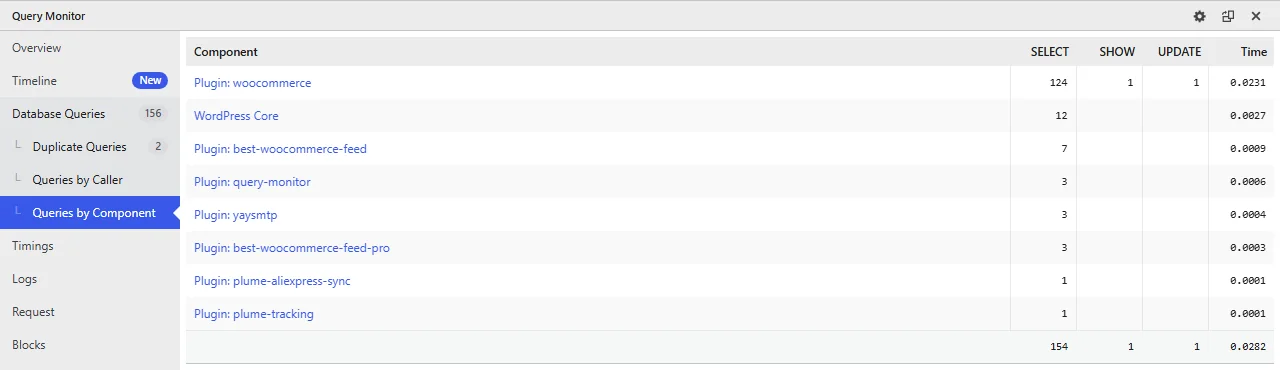
What it means. Many plugins load their code on every page, even where they're useless. An AliExpress importer runs when a customer reads your home page. A reviews plugin runs on your checkout. Each one costs a few milliseconds of server time, on every visit, and it adds up.
On our test store. We then installed the plugins you find on most WooCommerce stores: a wishlist (YITH WooCommerce Wishlist), product reviews (Customer Reviews for WooCommerce), AliExpress imports (Ali2Woo), PDF invoices (PDF Invoices & Packing Slips), order tracking (ParcelPanel) and a live chat (Tidio). 15 plugins in total. And we timed how long each one takes to load, on every page:
| Plugin | Server time it adds, on every page |
|---|---|
| WooCommerce | 77 ms |
| Ali2Woo | 73 ms |
| Customer Reviews for WooCommerce | 33 ms |
| A product feed plugin (free and Pro versions) | 21 ms |
| An SMTP plugin | 10 ms |
| ParcelPanel | 7 ms |
| PDF Invoices & Packing Slips | 3 ms |
| Tidio, YITH Wishlist | under 1 ms (their work happens later in the page) |
Measured on October 21, 2026, on a product page: time to load each plugin's main file, with a temporary timer on the server, median of 4 requests. Work done later in the page is not split by plugin.
The whole page now took 0.73 s to build instead of 0.51 s, with 245 database queries instead of 152. Your visitors wait longer before seeing anything, on every page, and you didn't change a thing on your products.
The fix. Update the plugin, or replace it. If nothing stands out in Query Monitor, run the conflict test that WooCommerce recommends on a copy of your site: deactivate half of your plugins, measure, and keep halving until you find the culprit. With 20 plugins, 5 rounds are enough. Then uninstall Query Monitor: you don't need it all year.
Step 5: Count what your plugins load for visitors, and cut
Symptom. Product pages feel heavy. PageSpeed Insights talks about “unused JavaScript”. You have a lot of plugins and wonder which ones hurt.
Test it. In Chrome's Network tab (“Disable cache” ticked), filter on JS, then CSS. The bottom bar shows the number of files and the size transferred. Each file's path tells you which plugin loaded it: /wp-content/plugins/plugin-name/.
On our test store. With the same usual plugins, here is what a visitor downloads on one product page:
| Product page | Store with 7 plugins | With the usual plugins (15) |
|---|---|---|
| Total downloaded | 537 KB | 921 KB |
| Files | 56 | 87 |
| JavaScript | 122 KB | 467 KB |
| PageSpeed score (mobile) | 74 to 75 | 67 |
| Main photo displayed (LCP) | 2.9 to 3.2 s | 3.8 s |
Who added what: YITH Wishlist loaded 151 KB (7 files) on every page, home page included. Ali2Woo added 45 KB, Customer Reviews 32 KB. And these plugins pulled in extra WordPress libraries: 204 KB instead of 68 KB. ParcelPanel, PDF Invoices & Packing Slips and Tidio (not yet connected to an account) loaded nothing on this page.
The fix: be ruthless. Go through your plugin list, one by one, and ask two questions:
- Do I really use it?Not “it might be useful one day”: do you use it every week? If not, delete it. Deactivating isn't enough, because some leave scheduled tasks and settings behind.
- Does it load everywhere?If you need it but it loads its files or its code on every page, replace it with a lighter plugin that only loads where it works.
Why stores end up with so many plugins, and how Plume simplifies it
On WooCommerce, almost every need is a plugin. One for order tracking. One to sync your AliExpress orders, like Ali2Woo. A chatbot. A plugin for invoices. Each comes from a different vendor, with its own menus, banners, scripts and scheduled tasks. After a year, a small store easily runs 20 or 30 of them.
That's exactly why we built Plume: a lightweight WooCommerce suite that covers those everyday needs, in one place. Each plugin does one job, and “a plugin's scripts only load on the pages where it works”. We measured our plugins on the same store, the same way, next to the usual ones:
| Need | Usual plugin | Cost per page | Plume | Cost per page |
|---|---|---|---|---|
| Order tracking | ParcelPanel | 7 ms, 0 KB | Plume Tracking | 6 ms, 0 KB |
| AliExpress import and order sync | Ali2Woo | 73 ms, 45 KB | Plume Product AI + AliExpress Sync | 7 ms, 0 KB |
| PDF invoices | PDF Invoices & Packing Slips | 3 ms, 0 KB | Plume Invoices | 11 ms, 0 KB |
| Live chat | Tidio | under 1 ms, 0 KB until connected | Plume Chat | 3 ms, 13 KB |
| Total | 84 ms, 45 KB | 26 ms, 13 KB |
Server time added on every product page, and files downloaded by visitors, measured on October 21, 2026. Two honest notes. Plume Invoices costs a bit more server time than PDF Invoices & Packing Slips, because it also handles e-invoicing. And Tidio loads nothing until you connect it to an account; once connected, its widget downloaded about 526 KB on Tidio's own site in our chat test.
Overall, the same four jobs cost about three times less server time with Plume, and a fraction of the files. With one subscription, one style and one support, instead of four vendors.
But let's be clear: lighter plugins won't fix a server with no cache or a 3 MB product photo. For most stores, steps 2, 3 and 6 matter as much. Do them too.
Step 6: Check your largest image, and what makes the page jump
Symptom. The page shows up, but the big photo arrives last. Or things move while the page loads, and your customer taps the wrong button.
Test it. In PageSpeed Insights, scroll down to the diagnostics and open two of them: “Largest Contentful Paint element”, the biggest thing on screen (on a product page, usually your main photo), and “Layout shift culprits”, the elements that make the page jump. Then, in the Network tab, filter on Img and compare each image's size with the size it's displayed at.
What it means. A 4,000-pixel photo shown 800 pixels wide, or several megabytes for one image, explains a slow LCP on its own. And a high CLS means some element appears late and pushes the rest: a gallery, a banner, an image without set dimensions.
On our test store. The product page downloaded 280 KB of images on a computer, but 575 KB on a phone. High-density phone screens pick bigger versions of the same photos. PageSpeed suggested saving 41 KB with better image delivery, and listed the layout shift culprits behind our 0.373.
The fix. Resize photos before uploading them, export them in WebP, and keep your image sizes reasonable in WooCommerce's settings. Never delay the loading of the main product photo: it's the one your customer is waiting for. For layout shifts, fix the elements PageSpeed lists, starting with the first one.
Step 7: Why is your WooCommerce admin so slow?
Symptom. The order list takes seconds to open. Saving a product drags. Your store is fast for customers, but not for you.
Why a cache doesn't help. The admin is never served from a page cache. Every click is built by PHP and the database. On our test store, the order list took about 1.05 seconds to answer, twice as long as a product page.
Test it, in this order.
- How your orders are stored (HPOS)WooCommerce, Settings, Advanced, Features. “High-performance order storage” is a newer, faster filing system for orders. It's on by default for stores created since WooCommerce 8.2 (October 2023). Older stores may still use the old one.
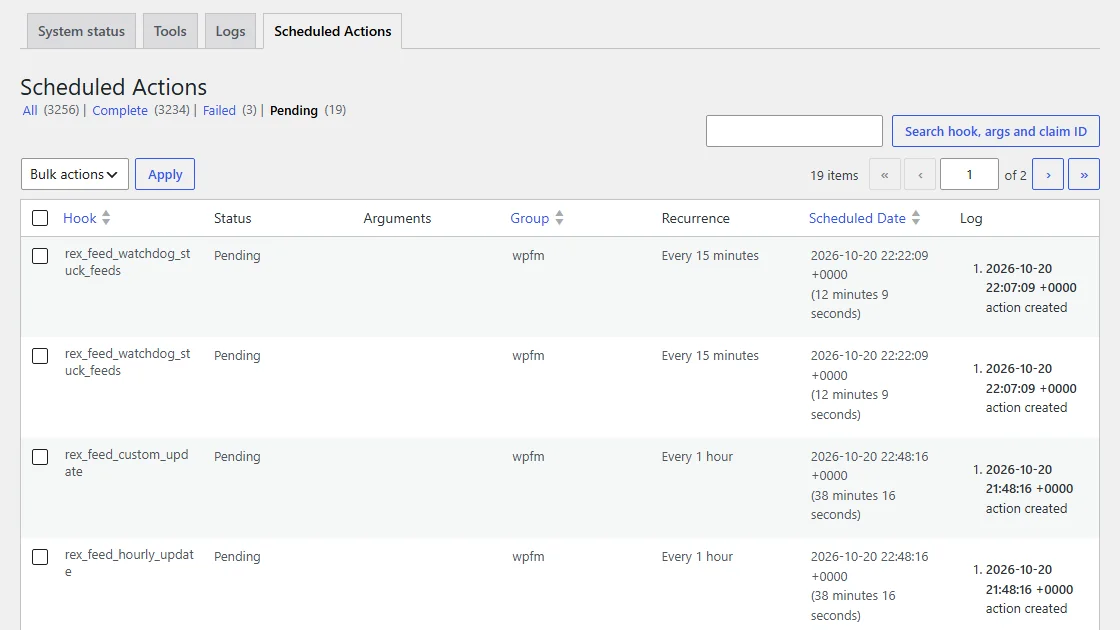
- Scheduled actionsWooCommerce, Status, Scheduled Actions. This is WooCommerce's to-do list: emails to send, data to clean. Look at the Pending and Failed counts.
- WP-Cron, the alarm clockWordPress only works through that to-do list when someone visits your site. A quiet store at night piles up tasks.
- Open admin tabsEach admin tab left open checks in with your site every 15 to 120 seconds. Ten tabs all day add up.
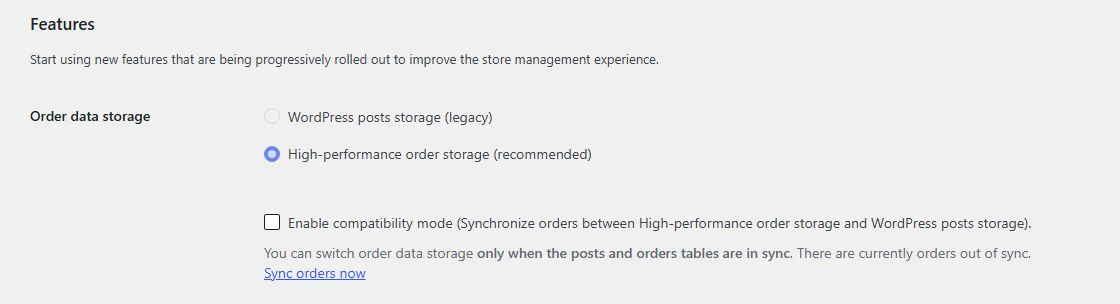
What it means.
| You see | It means | Do this |
|---|---|---|
| “WordPress posts storage (legacy)” selected | Orders live in the old, slower tables | Switch to HPOS after a backup, on staging first |
| Thousands of pending actions | WP-Cron doesn't run often enough | Ask your host or developer to set up a “real cron job”, so the to-do list runs every few minutes, visits or not |
| Failed actions piling up | A plugin task keeps failing | Open them, find the plugin, update or replace it |
| Slow even with few orders | Server, PHP or external calls | Back to steps 3 and 4 |
On HPOS, WooCommerce's own benchmark on about 400,000 orders measured order creation about 5 times faster, and checkout about 1.5 times faster (WooCommerce developer blog). That's their large test store, not a promise for yours.
Step 8: Test the cart and checkout
Symptom. The “Add to cart” button reacts slowly. The cart or checkout takes a while to show up.
Test it. In the Network tab, type wc-ajax in the filter box and browse a few pages. Does a request called get_refreshed_fragments appear on every page? It's a small background request that refreshes the mini-cart icon. Then load your cart and check its weight and its server response time (step 2).
What it means. Since WooCommerce 7.8 (June 2023), this mini-cart refresh no longer runs on every page by default, only where the mini-cart needs it (WooCommerce developer blog). Many older guides still tell you to disable it. If you still see it everywhere, your theme or a plugin forces it.
On our test store. No fragments request on our pages. But the cart was by far the heaviest page: 862 KB and 80 requests, including 671 KB of JavaScript. That's WooCommerce's block-based cart and the WordPress block libraries it needs, with no extra plugin involved. And since the cart can never be cached, its server time stayed at about half a second, cache or not.
The fix. Make sure your page cache excludes the cart and checkout. Then speed up the server side, since nothing else helps here: recent PHP with OPcache, an object cache (step 3). Finally, check which plugins add fields or scripts to the checkout (step 4).
Step 9: Fix one thing, then measure again
Change one thing at a time. Same page, same tool, same device. Run each test 3 times and keep the middle value. Then write it next to your “before” number.
Be patient with PageSpeed's real-user block: it covers the last 28 days, so an improvement takes up to four weeks to show fully. The lab test and your server response time, on the other hand, react right away.
Call a developer if your server stays slow with no plugin to blame, if your database weighs several gigabytes, or if Query Monitor points to your theme.
Your check-up result
Here is the full grid. Find your symptom, and start with the first line that applies to you.
| Symptom | Most likely cause | Step | Free fix | Paid option |
|---|---|---|---|---|
| Every page slow, blank screen first | No page cache | 2 | LiteSpeed Cache or WP Super Cache | WP Rocket |
| Cart, checkout and admin slow | Old PHP, no OPcache, no object cache | 3 | Recent PHP, Redis Object Cache | Better hosting |
| Heavy product pages | Plugins that load everywhere | 5 | Delete the plugins you don't use | Replace heavy plugins with a lighter suite, like Plume |
| Slow after an update | One plugin or theme | 4 | Query Monitor, conflict test | A developer |
| Photo arrives last, page jumps | Oversized images, layout shifts | 6 | Resize, WebP, fix the culprits | An image optimization service |
| Slow order list | Legacy order storage, scheduled actions | 7 | HPOS, real cron | A developer |
| Slow add to cart | Fragments forced, slow server | 8 | Theme settings, steps 2 and 3 | Better hosting |
Measure before you buy. Most slow stores don't need another plugin. They need the right one fix.
Our own test store is the proof. Its first problem was a server rebuilding every page, with no page cache and no opcode cache. Then the usual plugins: 0.2 s more server time and almost 400 KB more on every product page. Then a page that jumped, and phone images twice as heavy. Measure in that order, and you won't pay for a fix you didn't need.
And when it's time to clean up your plugin list, keep one question in mind for each of them: does it earn its place on every page?
Frequently asked questions
Why is my WordPress site so slow?
Most of the time, the server takes too long to build each page because there is no page cache, PHP is old or missing its opcode cache, and nothing is cached in memory. Heavy images, layout shifts and plugins that load scripts everywhere come next. Steps 1 to 4 of the check-up tell you which one.
Does WooCommerce slow down WordPress?
WooCommerce adds pages that cannot be cached, like the cart, checkout and account, and a lot of data: orders, sessions and scheduled actions. It does not have to be slow: a page cache that excludes the cart, a recent PHP version and High-Performance Order Storage do most of the work.
How do I find which plugin is slowing down my site?
Install the free Query Monitor plugin and open its Queries by Component panel on a slow page. If nothing stands out, run a conflict test on a staging copy: deactivate half of your plugins, measure, and keep halving until you find the culprit.
Do deactivated plugins slow down WordPress?
Their code does not run, but some leave settings and scheduled tasks behind in your database. If you don't use a plugin anymore, delete it rather than just deactivating it, and check the autoloaded options in Site Health.
Why is my WordPress admin so slow?
The admin is never served from a page cache: every click is built by PHP and the database. On a WooCommerce store, check that High-Performance Order Storage is on, look at pending and failed scheduled actions, make sure WP-Cron runs, and close the admin tabs you don't need.
Is Shopify faster than WooCommerce?
On average, Shopify sites pass Google's Core Web Vitals more often: 76% on mobile against 39% for WooCommerce stores, according to HTTP Archive data for September 2026. But Shopify hosts and caches every store itself, while a WooCommerce store's speed depends on its hosting and settings, which you control.
Can WooCommerce handle a large catalog?
Yes, with the right setup. WooCommerce published performance tests on a store with about 400,000 orders and 30,000 products using High-Performance Order Storage. Beyond that, hosting, an object cache and a clean database make the difference.
How do I speed up WooCommerce?
In this order: add a page cache that excludes the cart and checkout, move to PHP 8.3 or later with its opcode cache, add a persistent object cache, turn on High-Performance Order Storage, resize your images, then remove the plugins that load scripts where they are not needed. Measure after each change.

I sell on WooCommerce myself, and I build lightweight plugins out of what I run into with my own stores. Plume is the essentials of a store, without the bloat.